This quick and easy guide will help you get the most out of your old computer. These tips will help to fix your slow computer.
Watch the below video for guidance.
Slow Computer Fix
Over the course of time all computer slow down. Computer hardware is static (Stays the Same) while software is Dynamic (Changes over time). This is one reason why computers slow down. Software gets more advanced on your computer but the hardware running those programs stays the same. However there are many things you can do for free to help boost your computer speed. This guide will cover several of those items you should take a look at.
It should be mentioned that using a registry cleaner like PC Health Advisor can make these tasks a lot easier. However all the below items can be done for free. Registry cleaning however should be done only with a good registry cleaner and not manually editing the registry.
A great fully functional free trial registry cleaner on the market is JV16 Power Tools. The free working trial really let’s you take advantage of all it has to offer. Check it out here.
1. Eliminate Auto Starting Programs
This is where you are most likely to get the biggest boost in speed. By stopping all those programs that you never use from auto starting when your computer boost you can free some much needed memory and processing power on your PC. I have seen computer double in speed from this one little trick. Don’t expect that huge of a boost but you may be pleasantly surprised by the results you will get from it.
How to edit Auto Starting Program
Hit the Windows Start Button and in the Run command box type “msconfig” (not quotes). Go to the Startup tab. In the startup Item column, un-check the box to programs you do not want to auto-start. Only un-check the box if you understand what the program is and you do not want it running. Leave the item checked if you are unsure.
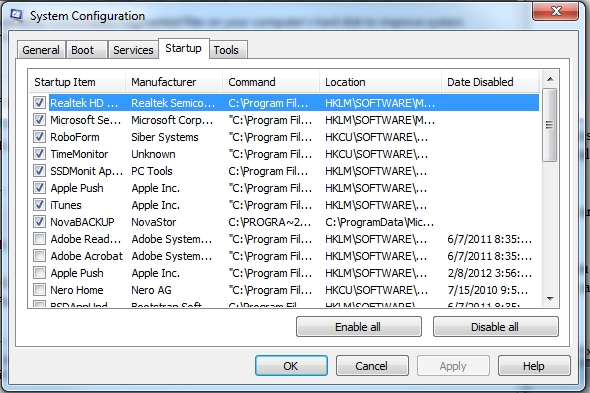
Now hit the OK button and re-boot your computer. On next boot up you will get a message telling you these items have been edited. Simply hit OK and you are done.
2. Clean Out Junk Files
So you won’t really gain any speed by doing this but it can free up hard drive space if you are running low. It’s something that should be done a few times a year to keep your PC in tip top shape.
To access the file cleaner just type in “Disk Cleanup” with out the quotes in the Run Command box. Then select the program Disk Cleanup. It will do a quick scan and then show you the below box. View everything and then hit ok.
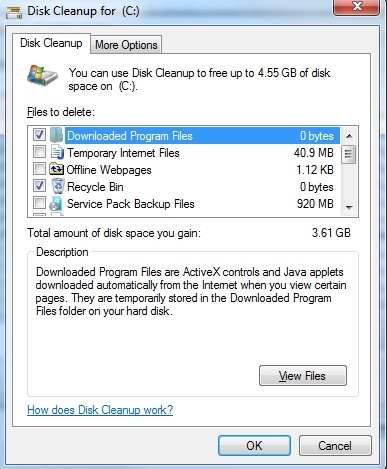
Go through the list of files to delete and select anything you want to remove. No harm in checking everything. You will not suffer an adverse effect from deleting everything it finds. These are mostly left over files on your system that should be cleaned out every once in a while.
3. Malware Scan
Most people know when they are infected with malware. However there are some that are a bit sneaky in how they work. To be on the safe side you should run a virus scan on your computer. If you already are using a paid antivirus client you don’t need to do this. However I would still recommend you download a malware scanner just to be sure. There are several free light versions on the market. Malwarebytes is one I like a lot. Download Malwarebytes from http://www.malwarebytes.org/
5. Defrag
Defrag is not as big of a deal as it used to be. Hard drives are already fast so don’t expect to get a big boost in speed by defragging a computer.
On your hard drive you have thousands of files\programs. When you open a file the hard drive has to locate all pieces of that file on the hard drive. The issue is those small pieces are all over the hard disc. The needle accessing the drive has to spin around all over to gather the information. When you defrag the computer you are basically placing all those file fragments in one location on the hard drive. This makes accessing those files faster. Back when drives were slower this could make a big difference. In today’s world of high speed hard drives it’s not as big of a deal. Still you should do it 2 or 3 times a year. It can take several hours so start it at night before bed.
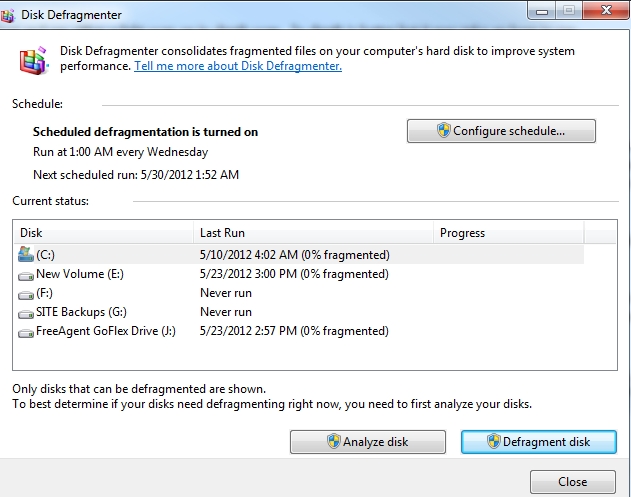
Hit the Windows start button. Type in disk Defrag in the run command box and above that Disk Defragmenter will come up. Select the program. Now select the C: drive and hit defragment disk. You can also schedule a scan to be run whenever you want the program to run.
With all the above you should be well on your way to a fast computer. There are of course other ways to make your computer faster but most the others will cost money. One thing I would encourage you to look into is adding on more memory. Use a memory configurator like the one found at www.crucial.com or www.kingston.com. These tools will tell you how much memory your computer has and how much you can upgrade to as well as the cost. For a hundred bucks, many people can double their computers memory and make their system even faster.
Please my system is refusing to power on when i power it on. Instead it brings up a blinking light 4 few seconds and go off again. D system is dell latitude d600.
The question has nothing to do with this post. We do not offer a support forum for generic questions.
With that said. It sounds like a hardware issue. Possibly Motherboard or CPU related. Unless you know how to take your laptop apart and test it you are better served taking it to a repair shop or selling it on Ebay as is. Not the answer you wanted to hear but your issues is far more complicated.