Having looked at the installation of a new motherboard with Windows 98, at time of writing Windows XP was found to cope less well. In fact, the system refused to boot to the Windows XP environment, even in Safe Mode. This is not entirely unexpected, since Windows XP is known to have problems coping with a motherboard upgrade, especially if the new motherboard contains an embedded IDE controller that has a different chipset than the original.
Microsoft’s recommended solutions are to either reformat your hard drive and perform a clean installation of Windows or to perform an in-place upgrade (reinstallation) of Windows XP.
Since the procedure associated with the former has been covered in the:
- HOW TO DO A CLEAN INSTALLATION OF WINDOWS 98
- HOW TO DO A CLEAN INSTALLATION OF WINDOWS XP
tutorials, here we’re going to opt for an in-place upgrade.
Relevant Microsoft Knowledge Base links:
- 316401: STOP 0x0000007B Error Message When You Restart Your Windows XP-Based Computer.
- 315341: How to Perform an In-Place Upgrade (Reinstallation) of Windows XP.
- 313348: HOW TO: Partition and Format a Hard Disk in Windows XP.
Since we can’t boot to the Windows XP environment at all, we’re going to have to do this by booting the system from the Windows XP CD-ROM. To do so, you may need to change the boot order in your system BIOS to ensure the CD boots before the hard drive.
Proceed as follows:
- You’ll be invited to Press any key to boot from CD. Do so.
- Setup inspects your system and loads files from the CD-ROM before presenting you with the following options:
- To setup Windows XP, press ENTER
- To repair a Windows XP installation using Recovery Console, press R
- To quit Setup without installing Windows XP, press F3.
- The Windows XP Licensing Agreement will be displayed.
Press F8 to accept it.
- The system searches for previously installed versions of Windows before presenting you with the options:
- To repair the selected Windows XP installation, press R
- To continue installing a fresh copy of Windows XP without repairing, Press ESC.
- Setup examines your hard drives and copies files from the CD-ROM to the Windows installation folders and then initialises your Windows XP configuration.
- The computer restarts.
Ignore any invitation to boot from CD, and Setup will continue as though it’s doing a clean install. Fear not, however, your applications and settings will be preserved!
- The system will again restart before booting to your repaired Windows XP environment.
You’ll then be invited to register with Microsoft and to enter the names of the people who’ll be using the system.
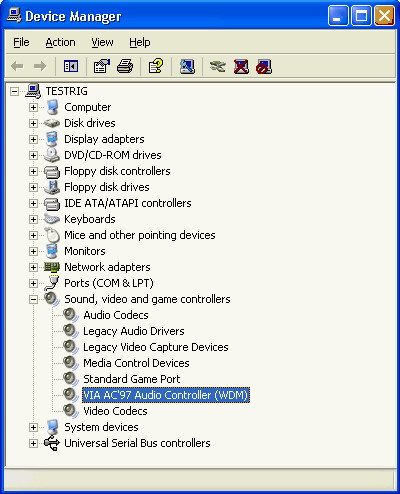
- Before proceeding any further it’s worth checking Device Manager to see if everything looks OK.
- Fortunately it does, even to the extent of the VIA AC’97 Audio Controller (WDM) driver being all present and correct!
- That being the case, installing any drivers that came with your motherboard – the VIA 4in1 Service Pack Driver etc. in this case – is a matter of personal choice.
- Performing the Windows repair installation will, however, have lost any service packs and other updates installed via the Windows Update facility.
Press ENTER.
Press R.
The final step in the procedure is to reinstall these.
The chances are that having repaired your Windows system, it ought to be stable. However, if you start having difficulty with applications that had previously run without problem, it’s possible that your motherboard upgrade has, in fact, impaired your system’s integrity in some way. If this is the case, the only sure way of rectifying things is to perform a clean install of Windows.
Booting up your PC without a working copy of Windows.
- Motherboard Upgrade Reasons
- Motherboard Removal
- Motherboard CPU
- Motherboard Heatsinks
- Motherboard Memory Identification
- Motherboard Memory Installation
- Motherboard Fit
- Motherboard Power
- Motherboard Panel
- Motherboard Fan
- Motherboard USB Ports
- Motherboard FireWire Ports
- Motherboard Audio
- Motherboard Testing
- Motherboard Floppy Connections
- Motherboard IDE Connections
- BIOS Settings
- Motherboards and Win98
- Motherboards and WinXP