Method #1: There are many ways to kill an active process, and in this article we will examine some of the most common and effective approaches to achieve this task. When deciding to end a process, especially during a time when your system is compromised with a malware infection, be sure that you are ending the correct process, as problems can arise and make the situation worse. The first, and most common method is to use the task manager. There are several ways to bring up task manager. One method is to right click on the taskbar at the bottom of the screen and click the option that says “Task Manager”. The second method is to hit CTRL+ALT+DEL, and again, select the “Task Manager” option. The third method is to hit the Start Button, Run, type “taskmgr” and hit enter.
After clicking the “End Process” button, using the above method will prompt the user with the dialog box shown below. Once again, make sure that you are shutting down the correct process.

Sometimes, during a malware infection, Task Manager will be disabled. One method of fixing this (but it doesn’t work every time) is to use Start>Run, and use the following command to re-enable use of Task Manager:
REG add HKCUSoftwareMicrosoftWindowsCurrentVersionPoliciesSystem /v DisableTaskMgr /t REG_DWORD /d 0 /f
Method #2: The second method is geared towards the more technically savvy, however it should be noted that this option only works with Windows XP Pro through Windows 7. The commandline is generally the same for this method, regardless of which version of windows you’re running. After bringing up the command prompt or the Start>Run feature (cmd.exe), the user can make use of a feature in windows called TaskKill. This allows the user to kill any active process and subsequent child processes. Below are the details of the commandline for taskkill.exe.
The quickest, and easiest option is to use the /F parameter along with /IM and the name of the process you want to terminiate. /F forces the process to unload immediately, which can be handy if recovery is time sensitive. /IM allows the user to specify which process they would like to terminiate, and even allows for wildcard matching, which allows multiple offending processes to be shut down from one commandline parameter.
Method #3: Another method (if the computer requires a restart and the process is still active) is to use msconfig from either Start>Run or the commandline. After MSConfig starts, the processes can sometimes be prevented from starting up by disabling them from the “Startup” tab. After rebooting, the process will no longer be active.
Method #4: Sometimes, a process that you want to terminate can be rather stubborn, and none of the above options work. There are several applications that you can download from the internet that will allow you to do the same thing as Task Manager in the event that access to taskmgr.exe has been blocked. One of these applications is called Process Killer, and below is a screenshot of it in action.
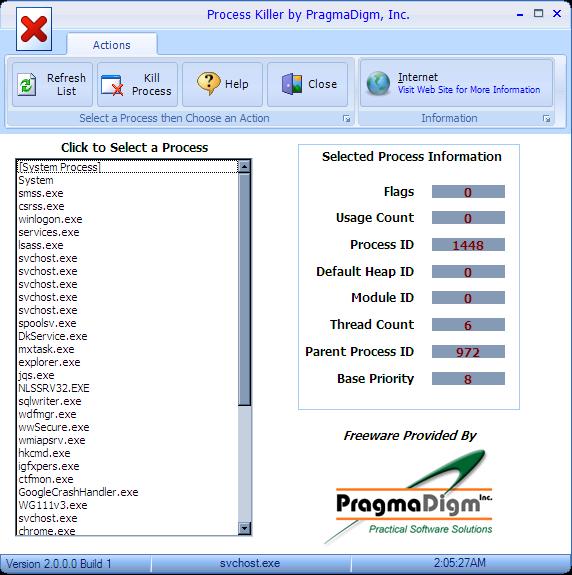
Process Killer not only serves the same function as Task Manager, but it also provides the user with a little more information about what’s happening with each process.
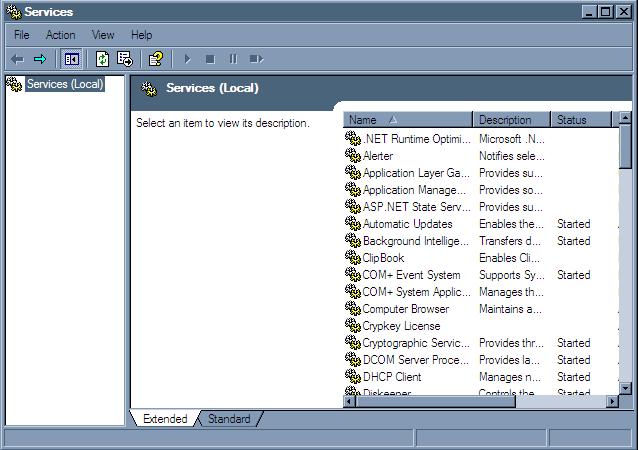
Method #5: As a last case resort, if a particular process refuses to shut down under any circumstance, it has most likely been installed as a service. Running services.msc from the Start>Run area will bring up the Windows Services snap-in management console. It is strongly recommended that you only use this as a last resort, because terminating the wrong service can cause all manner of strange and undesirable effects on your system. If services.msc doesn’t work in windows normal mode, usually it will work if you run it in safe mode. Below is a screenshot of the snap-in management console.
Conclusion
Getting a process to end can sometimes be a headache, but using one of the above methods is guarunteed to help put an end to those minor annoyances, especially during a malware infection. While there are a few other methods to kill a running process, these are the easiest, and often most effective methods to use when the need arises.