pctechguide.com

  • Home
  • Guides
  • Tutorials
  • Articles
  • Reviews
  • Glossary
  • Contact

How to Remove PC Optimizer Pro

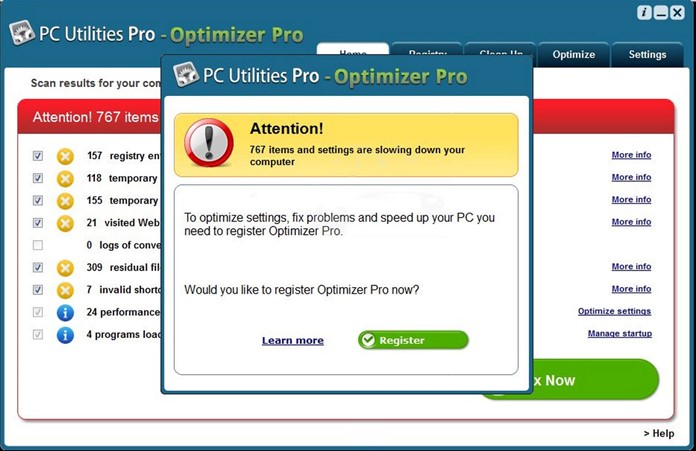
PC Optimizer Pro is one of the biggest examples of duping people on the Internet. It is billed a as a free registry cleaner that is advertised with other free downloads. When it gets installed, it will alert you (falsely) with the claim that your computer is infected with all kinds of bugs. Then when you try to remove all the issues it claims to have found, then it will tell you that you have to buy the software in order to go any further.


PC-Optimizer-Pro-Removal


But, it is just a trap to get you to buy their worthless software. It is a rip off of the highest order. And, even though it claims to have found dozens of issues on your computer, it is nothing more than malware itself.

The program will start a fake system scan when it is ready to wreak havoc on your computer. It will then display the bogus information trying to trick you into buying the software in order to clean it up.

But, in the background, PC Optimizer Pro will be working to bring your computer to its knees. You will notice your computer start to run slower and act strange. It can also block your access to the Internet to install legitimate programs to remove it. Therefore, it is recommended that you remove this trash from your computer as soon as you notice it.

Removing the software manually can be tricky. It is possible to remove it manually, but it can prove to be somewhat difficult and take intensive. We recommend using an application like SpyHunter to help remove the PC Optimizer Pro software. You can click on the link above to download the software and remove PC Optimizer Pro from your computer.
If you do insist on trying to remove it yourself, here are the steps to remove PC Optimizer Pro yourself:

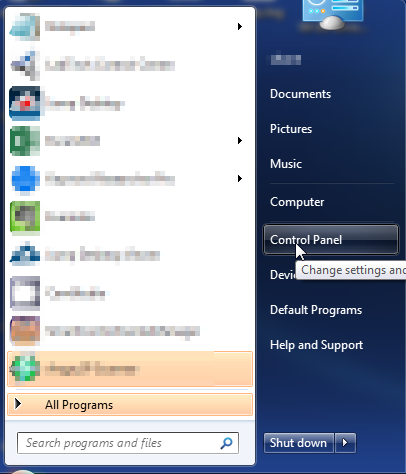
  1. Open Control Panel on your computer.


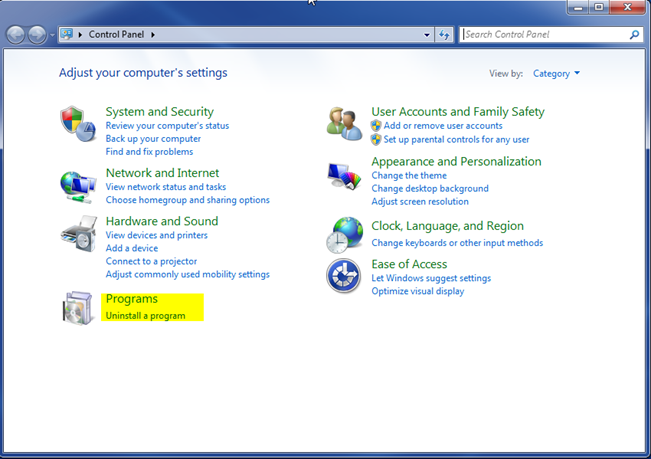
  2. Within Control Panel, click on Uninstall A Program under the Programs category. If you do not see the same view below, you can click on VIEW BY, in the top right corner and change it to “Category”.
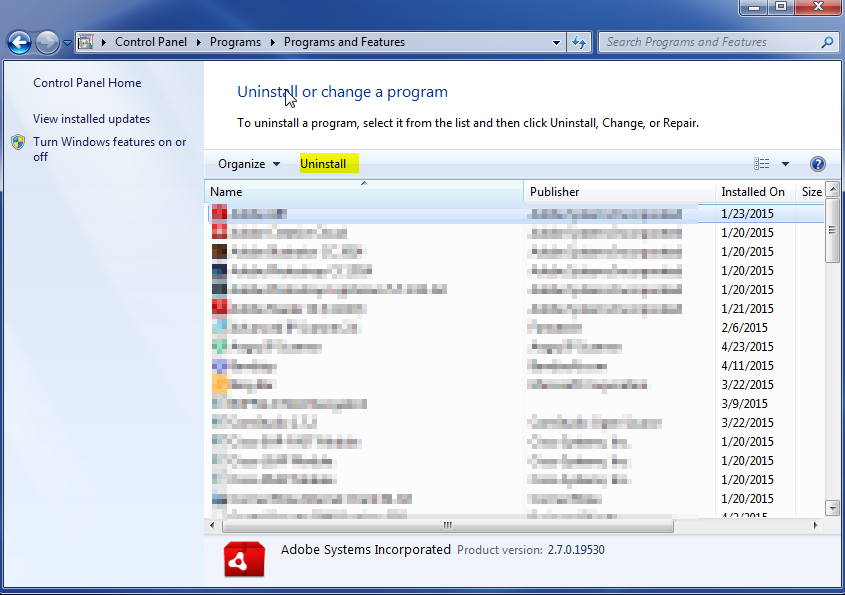
  1. In the list of programs that is shown in the next screen, scroll down until you see PC Optimizer Pro, Optimizer Pro, Super Optimizer. If you noticed the issue happening recently, you can sort by install date and see if you see it towards the top. Otherwise, you can sort it by name and it will be in alphabetical order. Once you find the one you want to uninstall, click on it to highlight it. Then click on Uninstall at the top.
 

Once you have removed the program using the instructions above, it is a good idea to scan your computer with a good malware scanner. You can download MalwareBytes for free and run a scan. This will remove anything leftover by the program or anything else that was introduced as a result of having it on your computer.

Filed Under: Articles

Latest Articles

How to Update Microsoft Windows with Patches and Service Packs

With previous versions of Windows, tracking down system patches and updated drivers was difficult. However, Microsoft streamlined the process in Windows 98 by including Windows Update on the Start menu, effectively providing an online extension of Windows designed to help maintain your … [Read More...]

Windows Backup In Action

Click Start, point to All Programs > Accessories > System Tools, and then click Backup. The Backup or Restore Wizard is launched. Check the appropriate box to proceed in Wizard mode. Select the appropriate radio button for backup. Indicate the way in which you wish to … [Read More...]

Remo Recover Outlook Express Review

Remo Recover Outlook Express If you are having problems with corrupted files, databases, or emails in your Outlook Express, we definitely recommend Remo Recover Outlook Express. This would be my number one choice for this problem. The only other possibility I could even give as a second option … [Read More...]

Top Taplio Alternatives in 2025 : Why MagicPost Leads for LinkedIn Posting ?

LinkedIn has become a strong platform for professionals, creators, and businesses to establish authority, grow networks, and elicit engagement. Simple … [Read More...]

Shocking Cybercrime Statistics for 2025

People all over the world are becoming more concerned about cybercrime than ever. We have recently collected some statistics on this topic and … [Read More...]

Gaming Laptop Security Guide: Protecting Your High-End Hardware Investment in 2025

Since Jacob took over PC Tech Guide, we’ve looked at how tech intersects with personal well-being and digital safety. Gaming laptops are now … [Read More...]

20 Cool Creative Commons Photographs About the Future of AI

AI technology is starting to have a huge impact on our lives. The market value for AI is estimated to have been worth $279.22 billion in 2024 and it … [Read More...]

13 Impressive Stats on the Future of AI

AI technology is starting to become much more important in our everyday lives. Many businesses are using it as well. While he has created a lot of … [Read More...]

Graphic Designers on Reddit Share their Views of AI

There are clearly a lot of positive things about AI. However, it is not a good thing for everyone. One of the things that many people are worried … [Read More...]

Guides

  • Computer Communications
  • Mobile Computing
  • PC Components
  • PC Data Storage
  • PC Input-Output
  • PC Multimedia
  • Processors (CPUs)

Recent Posts

Switch & Sync Software Review

PROS: Switch & Sync is one of the easiest products to use in the synchronization area. CONS: Wireless users will not be able to use this … [Read More...]

Graphic Card Driver Software

A modern graphics card's driver software is vitally important when it comes to performance and features. For most … [Read More...]

LED Laser Printers

LED (light-emitting diode) page printing - invented by Casio, championed by Oki and also used by Lexmark - was touted as … [Read More...]

[footer_backtotop]

Copyright © 2026 About | Privacy | Contact Information | Wrtie For Us | Disclaimer | Copyright License | Authors