If your second drive is a new, empty hard disk, you’re going to have to first create a primary partition on the disk and then format a file system on that partition. If you’re installing on a disk you’ve been using previously, you may want to delete it’s existing partitions before creating new ones.
Each allocated space on the hard disk is assigned a drive letter and the Fdisk utility may be used to create, change, delete, or display information about the current partitions on a hard disk. It allows you to specify partition sizes and to define which partition will be the active (boot) partition. Fdisk writes the partition table into the first sector of track zero of the partitionable disk. This partition table also contains the master boot block. When the machine is turned on, the ROM BIOS will read this master boot block and transfer control to it. The master boot block then finds out which partition is active, reads the boot code from that partition, and then transfers control to that boot code.
FAT – the acronym stands for File Allocation Table – is a file system that was first introduced in 1981. Windows 98 supports both the FAT16 and FAT32 variants, and you need to decide which you are going to use before proceeding any further.
FAT16:
The FAT16 file system has a maximum of 2 gigabytes (GB) for each allocated space or drive letter. For example, if you use the FAT16 file system and have a 6GB hard disk, you can have three drive letters (C, D, and E), each with 2GB of allocated space.
The 2GB partition limit is imposed by the maximum number of clusters and the largest cluster size supported by the FAT file system. The FAT file system is limited to 65,525 clusters. The size of a cluster must be a power of 2 and less than 65,536 bytes – this results in a maximum cluster size of 32,768 bytes (32K). Multiplying number of clusters (65,525) by the maximum cluster size (32,768) equals 2GB.
FAT32:
Windows 95 OEM Service Release version 2 and later support drives larger than 2GB using the FAT32 file system. This offers the following enhancements over previous implementations of the FAT file system. FAT32 supports drives that are up to 2 terabytes (TB) in size and stores files on smaller sections of the hard disk than the FAT16 file system does. This results in more free space on the hard disk. FAT32 is also more robust, being less susceptible to a single point of failure than earlier version of the file system.
The FAT32 file system does not support drives that are smaller than 512MB.
After the system has booted to your startup disk, proceed as follows:
- At the A:> prompt type fdisk and press Enter.
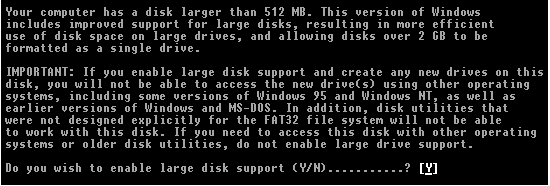
- If the hard disk is larger than 512 MB, you receive the following prompt:
- If you want to use the FAT32 file system, press Y, and then press Enter. If you want to use the FAT16 file system, press N, and then press Enter.
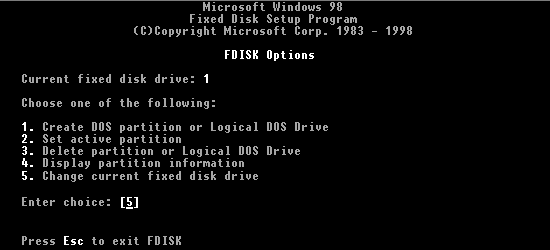
- After you press Enter, the Fdisk Options menu is displayed:
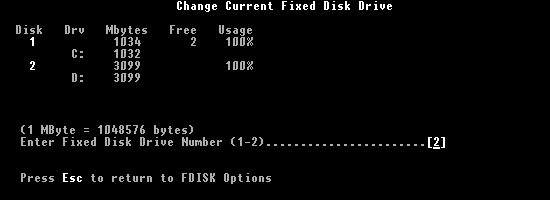
- Select option 5 so that you can switch to the newly installed D: drive:
- Enter 2 and press Esc to return to the FDISK Options.
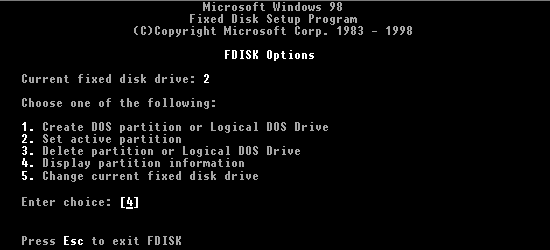
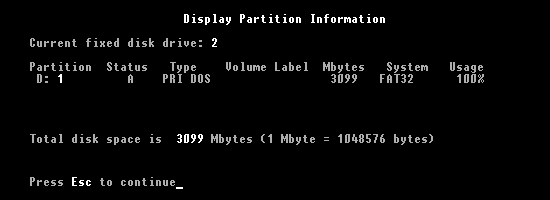
- Enter 4 to remind yourself of the current information for the D:drive.
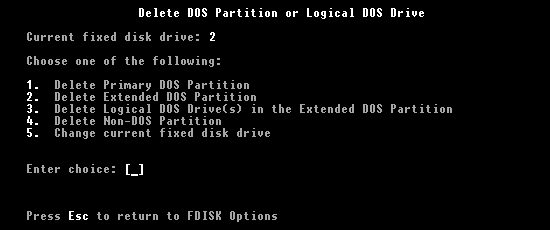
- Press Esc to return to the FDISK Options and select option 3 to delete existing partitions.
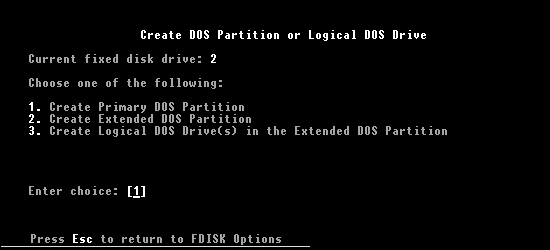
- When you’ve deleted all the existing partitions you require, return to the FDISK Options menu. Press 1 to select the Create DOS partition or Logical DOS Drive option:
- Press 1 to select the Create Primary DOS Partition option.
- After you press Enter, you receive the following prompt:
Do you wish to use the maximum available size for primary DOS partition?
Enter Y and Fdisk proceeds to allocate the whole disk to the partition.
Depending on its size, you may choose to divide your hard disk in multiple partitions. The precise manner in which you do this depends on your purpose in partitioning in the first place. For example, if your purpose is to create a dual-boot system, capable of running different operating systems, the method you use will be different from if you’re using partitioning simply as an organisational and data management device.
There are a number of reasons why you may want to organise your hard disk into multiple partitions:
- Organisation: Partitions provide a higher level of organisation than is possible with folders and files alone.
- Flexibility: The ability to boot your machine to multiple operating systems – Windows 98 and Windows NT say – is best achieved via the use of separate primary partitions.
- Resiliency: The failure of a single partition won’t necessarily render the entire system unusable.
- Security: The separation of data and software into different partitions can make for a simplified and more efficient security backup regime.
- Performance: Partitioning can benefit both general system performance and certain housekeeping tasks such as disk defragmentation.
- Efficiency: Use of multiple partitions can reduce cluster sizes and, in turn, wasted disk storage capacity.
- Convenience: Perhaps the most compelling reason of all is the degree to which the isolation of the operating system into a dedicated partition can simplify things when you find yourself having to perform a clean reinstallation of Windows!
Assuming your system has only one physical hard disk drive, it will need to have at least one primary partition. A drive may actually have up to four primary partitions, but only one of these can be active at any given time. If you want to organise your disk into anything more than a single primary partition, you need to create an extended partition, which may then be sub-divided into a number of logical DOS drives.
A bootable operating system can only reside on a primary partition, and a in a typical single-drive system the partition will be the C: drive, with the logical DOS drives being assigned drive letters D:, E:, :F etc. An extended partition counts as one of a disk’s four allowable primary partitions, and does not itself have a drive letter.
Drive referencing can become confusing in a multiple hard disk system, since drive-letters are assigned to all primary partitions first. If you subsequently add a further hard disk to your system, you can avoid impact on your existing drive letters by not creating a primary partition on the new drive. but instead creating an extended partition – the size of the entire physical disk – and sub-dividing this into multiple Logical DOS drives.